How to Install DoDo IPTV on Amazon Fire Stick — Complete 2026 Tutorial
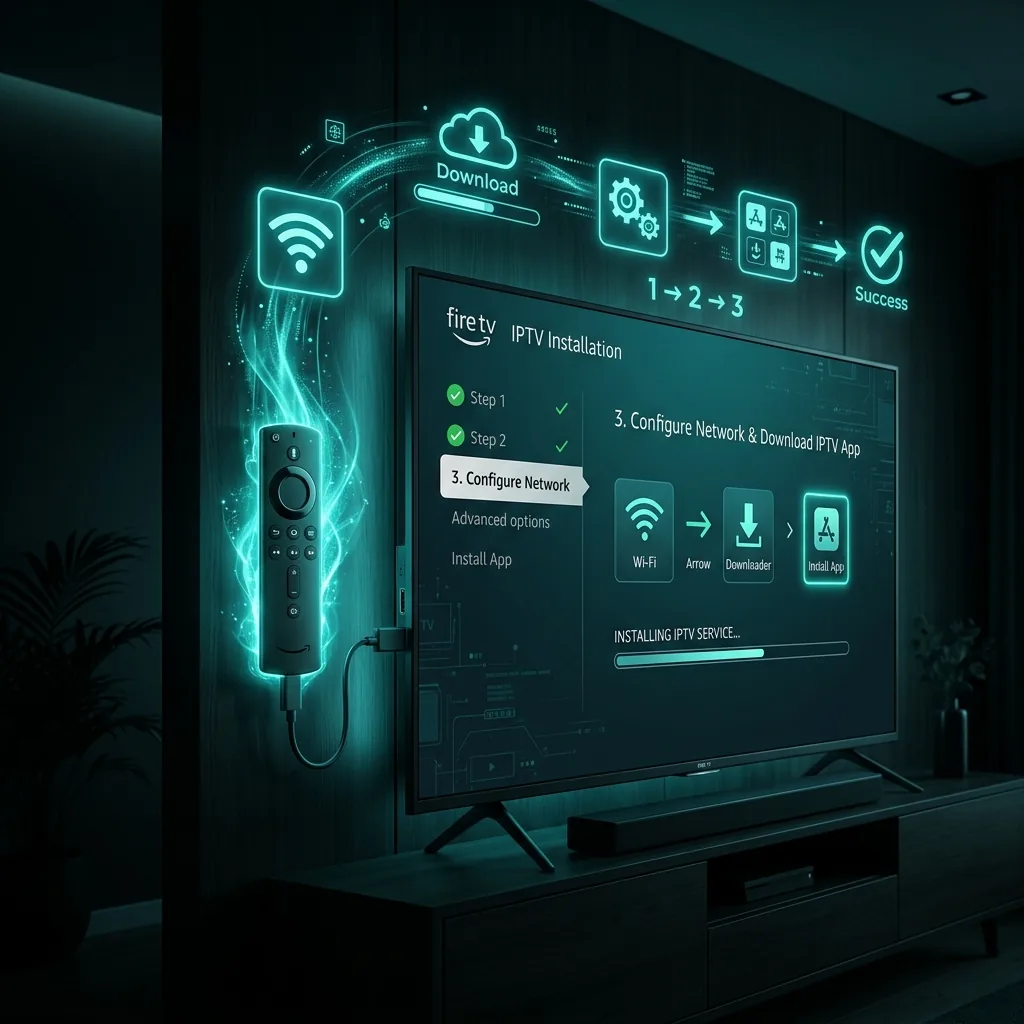
The Amazon Fire TV Stick is hands-down the most popular device for streaming DoDo IPTV. It's affordable (usually under $40), portable (fits in your pocket), and powerful enough to stream 15,000+ channels in crystal clear 4K quality. It's also incredibly easy to set up — even if you've never used an IPTV service before.
In this comprehensive tutorial, we'll walk you through the complete process of installing and configuring DoDo IPTV on your Amazon Fire Stick. We'll cover two methods — using TiviMate (our recommended app) and IPTV Smarters Pro — plus troubleshooting tips for common issues.
Total time required: Under 5 minutes
Difficulty: Easy (beginner-friendly)
Compatible devices: Fire Stick Lite, Fire Stick (3rd Gen), Fire Stick 4K, Fire Stick 4K Max, Fire TV Cube
Prerequisites — What You Need Before Starting
Before we begin, make sure you have the following ready:
- An active DoDo IPTV subscription from Dodo IPTV. If you don't have one yet, grab a plan from our pricing page — credentials are delivered instantly via WhatsApp.
- Your login credentials: You'll receive a Server URL, Username, and Password (Xtream Codes format) or an M3U playlist URL.
- Stable internet connection: Minimum 10 Mbps for HD, 25+ Mbps recommended for 4K.
- Amazon Fire TV Stick connected to your TV and powered on.
Step 1: Enable Developer Options (Allow Unknown Sources)
By default, Fire Stick only allows app installations from the Amazon App Store. Since TiviMate's APK isn't available on the Amazon store, we need to enable sideloading.
- From the Fire TV Home screen, navigate to Settings (gear icon, top right)
- Scroll to and select "My Fire TV"
- Select "Developer Options"
Note for newer Fire Stick models (2024+): If you don't see "Developer Options," follow this path instead:
- Go to Settings → My Fire TV → About
- Click on your Fire TV Stick name 7 times rapidly
- A toast message will confirm "You are now a developer"
- Go back to My Fire TV — "Developer Options" will now appear
Once in Developer Options:
- Find "Install unknown apps" (or "Apps from Unknown Sources" on older models)
- Toggle it to ON
- If prompted, select the specific app you want to grant permission to (choose "Downloader")
Step 2: Install the Downloader App
Downloader is a free utility app that lets you download APK files directly to your Fire Stick. It's essential for sideloading IPTV apps.
- From the Home screen, click the Search icon (magnifying glass)
- Type "Downloader" using the on-screen keyboard
- Select the Downloader app by AFTVnews (orange icon)
- Click "Get" or "Download" to install
- Wait for installation to complete (usually under 30 seconds)
- Click "Open" to launch Downloader
- If prompted for permissions, click "Allow"
Method A: Installing TiviMate (Recommended)
TiviMate is our #1 recommended app for DoDo IPTV on Fire Stick. It delivers the best EPG experience, fastest channel switching, and most reliable playback performance.
Step 3A: Download TiviMate
- Open the Downloader app
- In the URL field, type the TiviMate download URL (provided by our support team via WhatsApp)
- Click "Go" — the APK file will begin downloading
- When the download completes, a prompt will appear asking to "Install"
- Click "Install" and wait for installation
- Click "Done" (not "Open" — we'll clean up first)
- Downloader will ask to delete the APK file — click "Delete" to save storage
Step 4A: Configure TiviMate with DoDo IPTV
- Open TiviMate from your apps list
- Click "Add playlist"
- Select "Xtream Codes" as the login type
- Enter your DoDo IPTV credentials:
- Server URL: The server address from your welcome message
- Username: Your DoDo IPTV username
- Password: Your DoDo IPTV password
- Click "Next"
- Give your playlist a name (e.g., "Dodo IPTV")
- Click "Done"
- Wait 20-60 seconds for all 15,000+ channels to load
- You're in! Navigate through categories and start watching
Pro Tips for TiviMate
- Enable EPG: Go to Settings → EPG → Auto-update to keep the program guide current
- Set Favorites: Long-press any channel to add it to your Favorites group for quick access
- Create groups: Organize channels into custom categories (Sports, Movies, News)
- Adjust buffer: Settings → Playback → Buffer size → set to "Medium" or "Large" for optimal performance
- Premium unlock: Consider TiviMate Premium ($5.49/year) for recording, catch-up TV, and multi-playlist support
Method B: Installing IPTV Smarters Pro
IPTV Smarters Pro is an excellent alternative if you prefer a more visual, app-style interface (as opposed to TiviMate's cable-guide style).
Step 3B: Download IPTV Smarters Pro
- Open the Downloader app
- Search for "IPTV Smarters Pro" on the Amazon App Store — it's available directly!
- Alternatively, enter the IPTV Smarters Pro APK URL in Downloader
- Click "Get" to download and install
Step 4B: Configure IPTV Smarters Pro
- Open IPTV Smarters Pro
- Accept the terms and conditions
- Click "Add New User"
- Select "Login with Xtream Codes API"
- Enter your DoDo IPTV credentials:
- Any Name: "Dodo IPTV" (your choice)
- Username: Your DoDo IPTV username
- Password: Your DoDo IPTV password
- URL: Your DoDo IPTV server URL
- Click "Add User"
- Wait for the channel list to load
- Navigate through Live TV, Movies, and Series sections
Troubleshooting Common Issues
Running into problems? Here are solutions to the most common Fire Stick IPTV issues:
Issue: "App is blocked" or won't install
Solution: You haven't enabled Unknown Sources. Go back to Settings → My Fire TV → Developer Options → Install Unknown Apps → Downloader → ON.
Issue: Buffering or freezing during playback
Solutions:
- Check your internet speed (use the Silk browser speed test — aim for 25+ Mbps)
- Use ethernet instead of Wi-Fi if possible (Amazon sells a micro-USB ethernet adapter)
- Clear Fire Stick cache: Settings → Applications → Manage Installed Applications → TiviMate → Clear Cache
- Restart your Fire Stick: Settings → My Fire TV → Restart
- In TiviMate, try increasing the buffer size: Settings → Playback → Buffer size → Large
- Switch to a different server in your IPTV credentials (contact support for alternatives)
Issue: No channels loading / empty playlist
Solutions:
- Double-check your credentials — make sure there are no extra spaces in username/password
- Verify the server URL starts with "http://" and includes the port number
- Try using the M3U URL method instead of Xtream Codes API
- Contact Dodo IPTV support on WhatsApp for credential verification
Issue: "Storage almost full" message
Solution: Fire Stick has limited storage. Go to Settings → Applications → Manage Installed Applications and uninstall unused apps. Also delete cached data from streaming apps you no longer use.
Issue: Remote not responding / app frozen
Solution: Hold the Select button and Play/Pause button simultaneously for 5 seconds to force-restart your Fire Stick. This resolves most freeze issues.
Optimizing Your Fire Stick for the Best IPTV Experience
Follow these optimization tips to ensure smooth, buffer-free streaming with DoDo IPTV:
Network Optimization
- Connect your Fire Stick to the 5GHz Wi-Fi band (not 2.4GHz) for faster, more stable connections
- Position your router within 15 feet of your Fire Stick if possible
- Consider an Ethernet adapter for the most reliable connection
- Disconnect unused devices from your network during streaming
Fire Stick Settings
- Disable auto-updates for apps you don't use (reduces background bandwidth usage)
- Turn off Data Monitoring: Settings → Preferences → Data Monitoring → OFF
- Close background apps: Hold the Home button → select "App Switcher" → close running apps
- Disable notifications for unused services: Settings → Preferences → Notification Settings
Which Fire Stick Model Is Best for DoDo IPTV?
Not all Fire Sticks are created equal. Here's our recommendation:
- Best Overall: Fire TV Stick 4K Max (2nd Gen) — fastest processor, Wi-Fi 6E, 4K HDR
- Best Budget: Fire TV Stick (3rd Gen) — affordable, Full HD, reliable performance
- Best Premium: Fire TV Cube (3rd Gen) — hands-free Alexa, ethernet built-in, fastest hardware
- Avoid: Fire TV Stick Lite — limited features and slower performance
Next Steps
You're now set up and ready to enjoy 15,000+ channels and 40,000+ movies and series through your Fire Stick. Here's what to do next:
- Browse through channel categories and create your favorite channel list
- Set up the EPG guide for the easiest program discovery experience
- Explore the VOD library — search for any movie or series by name
- Check live sports schedules — EPG shows all upcoming matches
- Share your experience! Recommend Dodo IPTV to friends and family
Need help at any point? Our expert support team responds within minutes on WhatsApp. We'll walk you through anything you need — from installation to troubleshooting to optimization.
Don't Have a Subscription Yet?
Get DoDo IPTV from $4/month with instant activation and 7-day money-back guarantee.
Get Started Now